
How HCP and QBO work together
If you’re new to owning a trade business, you might already be overwhelmed with finding the right and most convenient job and field service management, accounting platforms, and other software for what your business may need. It can require a lot of research, and everyone’s favorite process: talking to sales representatives and listening to what they have to sell you. One of the most important features to look for is the platform’s ability to integrate and move crucial information between systems. Especially between invoicing and bookkeeping, because it replaces messy paper trails by linking billed jobs, completed sales, and more. If you’re interested in Housecall Pro and QBO, this blog shows you how these two work seamlessly together.
Integration Set-Up
For the two platforms to share important information, we must first set up the integration. It isn’t set up yet because the two programs can be used independently. However, it’s highly advisable to have your bookkeeper or accountant assist you with this setup because, in 2026 in particular, many changes have been made to help the integration work smoothly, which has added steps you must complete correctly.
After you have established accounts for both platforms, in HCP you will look for “My Apps. It will look like the icon shown below.

Once you find and click “My App Store”.” it will take you to the next page where you should see a search bar under the explore tab. Here, you will search for “QuickBooks Online” as in the following example. However, your page will not say active because it should prompt you to connect by logging in, or it will recognize that you are logged into QBO in another tab.
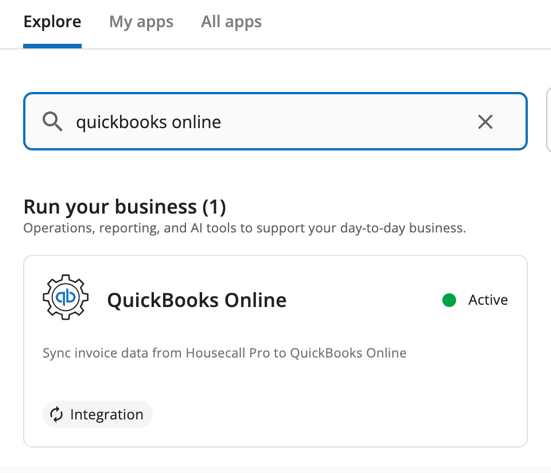
After this step, HCP will prompt you to set up your accounts to match where you want the information to map in your Chart of Accounts in QBO. For example, you must connect your banking in HCP to QBO. You must also set up your price book mapping and where the information will transfer in your income accounts in QBO. This is where we strongly recommend having your accountant or bookkeeper assist you, especially if you are new to it.
Customer Set-Up
In Housecall Pro, when you create a new profile, all information entered in the name, phone number, email, address, customer bills to, and company fields will push to QBO. The customer bills to feature allows you to create this profile as a sub-customer under the profile it bills to. Use this if you’re entering multiple addresses for someone or rental addresses for commercial customers.
The information that won’t sync to QBO includes the customer type, role, the “Mark as do not service” checkbox, multiple emails, or the “Send Email notifications” field. Any additional addresses saved in HCP after the first address will not sync. Only one address will sync for each customer. Private notes, communication preferences, customer tags, and attachments will also not sync.
Job/Invoice Set-Up
When creating jobs/invoices, some information will sync differently to QBO or not at all. The feature for “invoice due,” where you can select invoice due upon, net, or on a date, will not currently push over to QBO. If you want to affect your customer’s due dates, you will need to do this in QBO. If you have a standard due date that applies to all customers, set it up in your account settings in QBO. If a customer needs due dates, you will file them in QBO.
That customer’s features and information will not sync over, such as moreo invoicing, the summary ok, estimates, and the assigned technician or employee to the job. The items you will set and push over to QBO are the service name, quantity, unit price, whether it’s taxable, and the tax rate. However, if you enter a service name that isn’t in the drop-down or add to the service name, you will get sync errors. The drop-down options are items mapped from your price book in HCP to the products and services account in QBO.
Any additional service items added in the job will also push over to QBO as line items. This often applies to the Materials section in HCP, but it doesn’t apply here because QBO doesn’t support this feature. Instead, it will appear as a line item similar to the service items underneath them. Also, any discounts applied, whether you add it in as a dollar amount or a percentage, it will sync to QBO in the same fashion. Once added, it will map with the discount account under income in your P&L in QBO.
Additionally, business units can be synced as class tracking in QBO. However, this doesn’t sync automatically; you must select the business unit you want to use for that job in HCP. If you are doing class tracking in QBO, your SOPs, CSRs, or dispatchers must enter the business unit before dispatching the job.
More items that will not sync over are job inputs, job costing, the activity feed, job type, any checklists or tasks, and attachments. These will not sync because they exist only in Housecall Pro. However, you can add attachments in QBO because that feature is available, but you will need to do this directly in QBO.
More Syncing
More syncing features: towards the bottom of the job page, there is a section for QuickBooks Online. When you click the setting for “Auto-sync on jobs”, it will take you to more settings to manage the timing of syncing to your QBO. You can choose to sync when the job is finished or when the job is invoiced. There’s also a setting for deposit syncs; this is still subject to change because they are working on updates, and it is getting better. You can record deposits as income or record them as liabilities.
In these settings, some tabs show sync alerts; these appear when issues need more attention so the information can integrate with QBO. The next tab is Import; this shows imports you have done from QBO to HCP. We advise against doing many of these imports, as they can cause duplicated income or other issues within HCP. The next tab is Banking, where you can connect bank accounts for credit card deposits, HCP expense cards, or short-term funding and financing. The final, 4th tab displays account details; this is a great place to see where issues might exist, such as tax rates, business units, customers, jobs, price books, and more. Another way to find these settings and alerts is to look for the QBO icon in the top menu.
Sync to brain, status: loading to completion
Now, there is still a lot more to discuss about how HCP shares information or works with QBO. But this was just the basics of getting started, especially when you are new to both platforms. This was a lot of information to unpack and follow, so you may need time and/or practice to sync it in your mental catalog. That is why we recommend doing these steps with the help of your accountant or bookkeeper, especially if they are familiar with both. However, if you need more tools or guidance, Waterford Business offers more information on our YouTube page and company website. You can also reach us by phone at 864-351-0852 or by email at info@waterfordbusiness.com.