
Duplicate Customer Error in Housecall Pro
If you’ve encountered a Duplicate Customer error while syncing invoices from Housecall Pro (HCP) to QuickBooks Online (QBO), you’re not alone. This is one of the most common sync errors we encounter in Housecall Pro. This error occurs when two customers have the same name. Fortunately, the issue is easy to understand and resolve once you know what is going on.
Why the Duplicate Error Happens
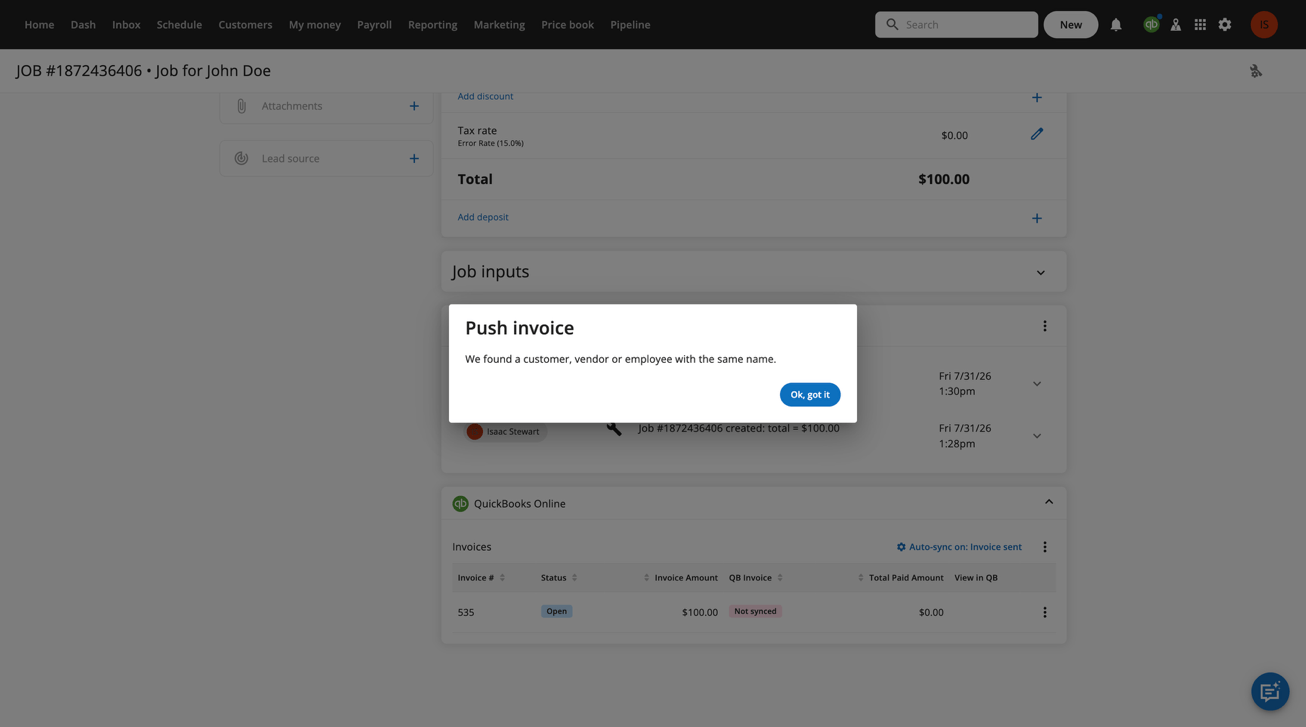
When Housecall Pro sends an invoice to QuickBooks Online, QBO attempts to match the customer records. Every customer, vendor, and employee in QBO must have a unique display name. If a new customer in HCP has the same display name as an existing customer in QBO, the sync will fail.
When this happens, you will see:
- A failed to push invoice to QBO message
- A notification on the QBO sync icon
- An error indicating that the customer is already associated with another customer in QBO.
Retrying the sync without addressing the duplicate customer will continue to produce the same error.
How to Fix the Duplicate Customer Error
There are two primary ways to resolve the issue, depending on whether the customer is truly a duplicate or shares a common name.
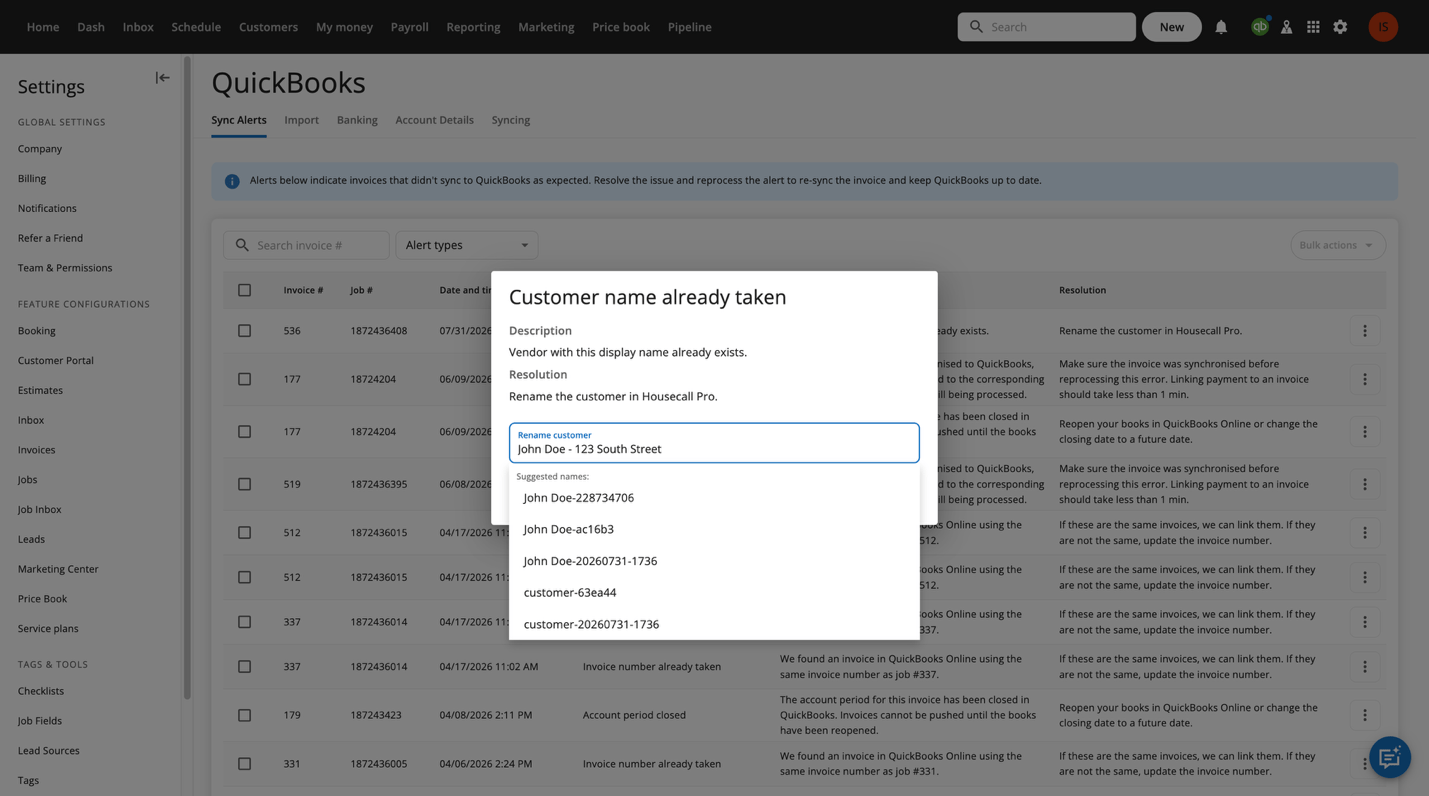
Option 1: Rename the Customer
If the customer is a different person who happens to share the same name, you will need to update the customer’s display name to make it unique. Some common naming tactics include adding the service address, including a unit number, using a middle initial, or adding another identifying detail. For example, if there are two customers named John Doe, one can hold the name John Doe, and the other would be listed as John Doe-123 South Street. Once the display name is unique, sync the invoice again; it will then push successfully to QBO.
Option 2: Merge Duplicate Customers
If the duplicate customer was created by mistake and both records represent the same person, merging the customers is the best solution.
To merge duplicate customers:
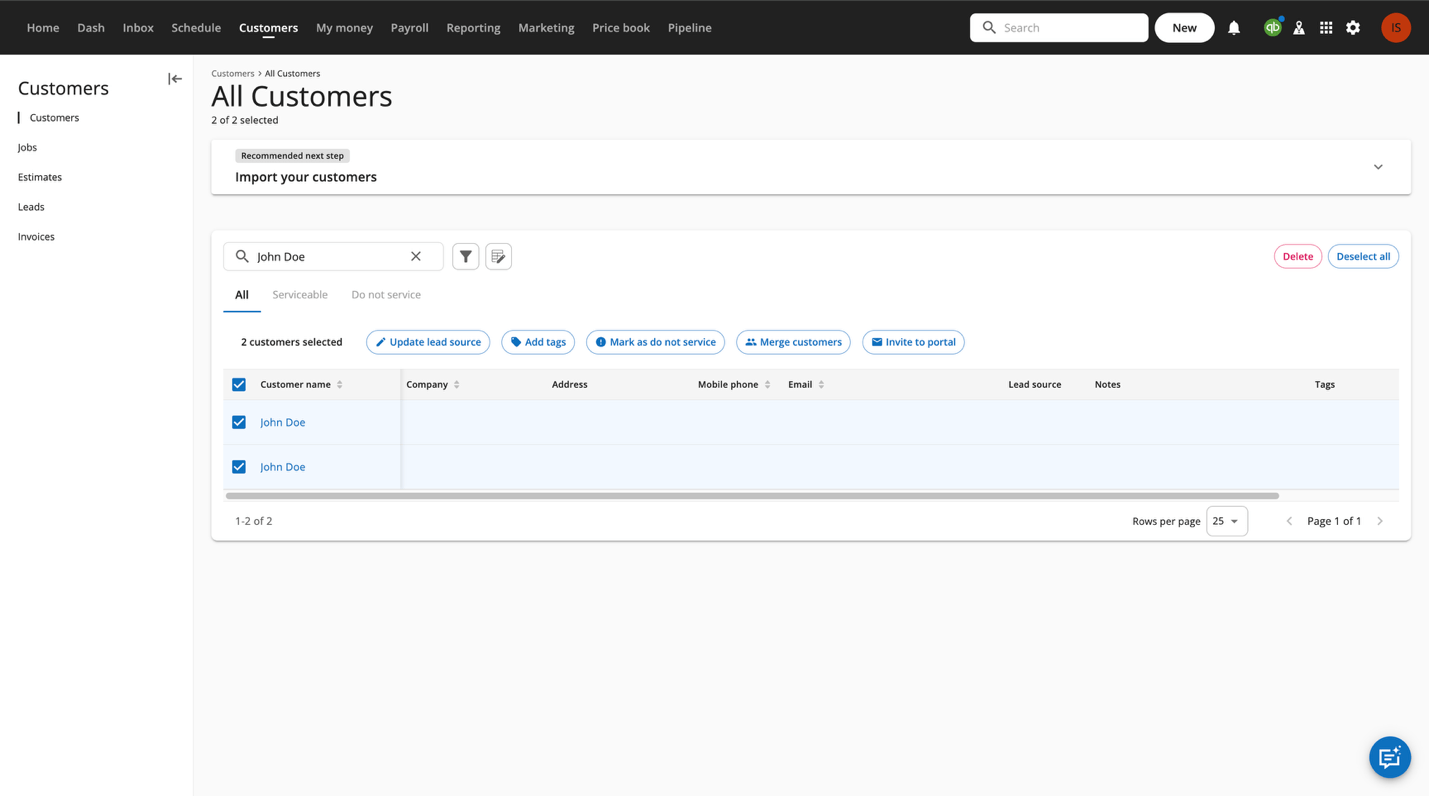
- Navigate to the customer page.
- Search for the name of the duplicate customers.
- Select both customers.
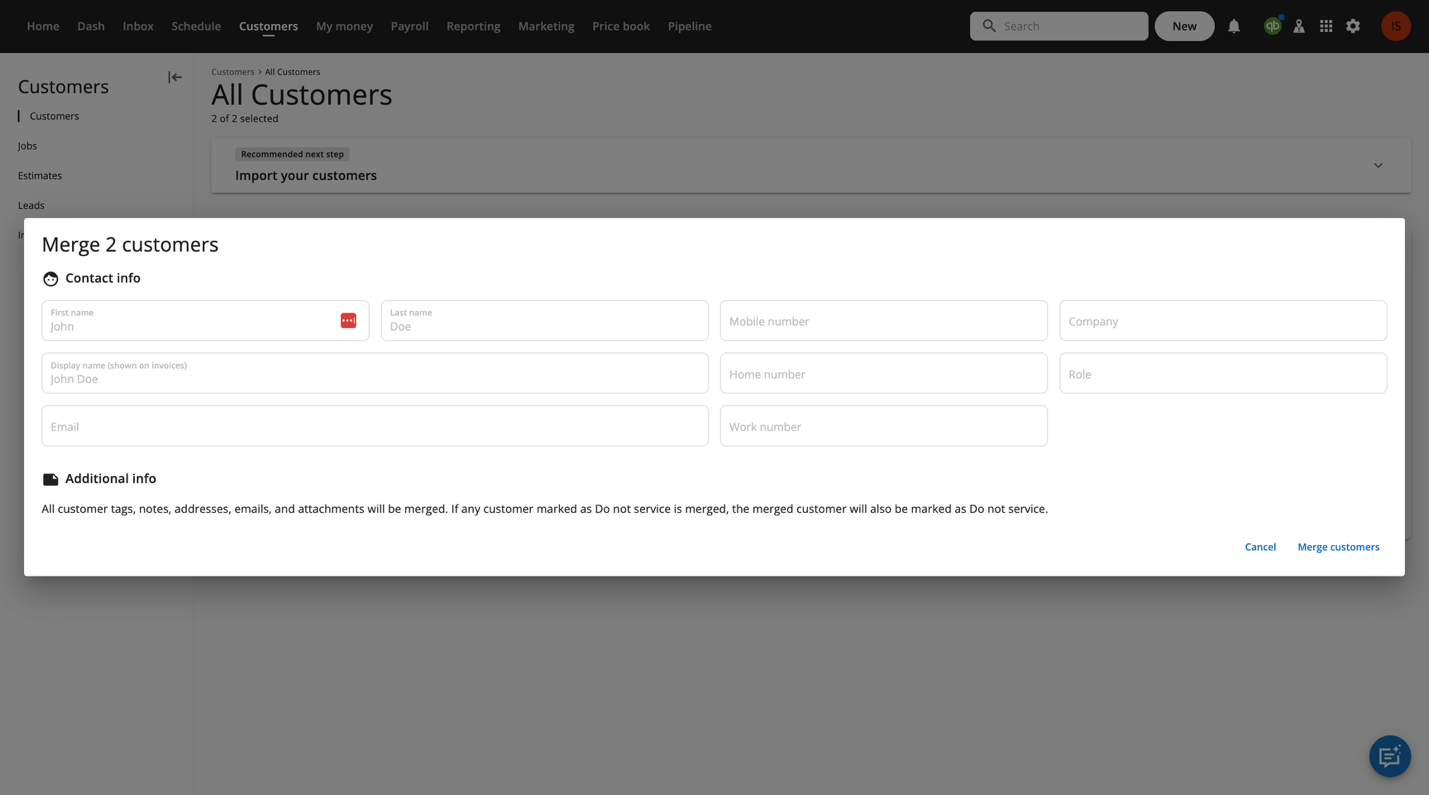
- Select Merge Customers.
- Complete the merge and return to the invoice to run the sync again.
After the duplicate records have been merged, the invoice will sync successfully.
Best Practices to Prevent Duplicate Customers
Preventing duplicate customers is much easier than cleaning them up later. Consider this best practice to eliminate the risk of an error: Train dispatchers and CSRs to search for an existing customer before creating a new one. For customers with common names, establish a consistent naming convention that includes an identifying detail such as their property address, business name, unit number, or middle initial. For customers such as landlords or property managers with multiple service locations, create a separate customer record for each service address. This keeps addresses organized while ensuring each QBO customer remains unique.
Key Takeaway
The duplicate customer error isn’t a syncing problem; it’s a customer naming issue. Because QBO requires every customer to have a unique display name, duplicate names will prevent invoices from syncing successfully. When the error occurs, rename the customer if it’s new, merge the customer if it’s a duplicate, or establish consistent naming standards to avoid future naming issues. By following these practices, you can keep customer records clean, minimize sync failures, and ensure a smoother integration between Housecall Pro and QuickBooks Online.
If you are looking for Housecall Pro and QuickBooks Online professionals to help with this issue, please don’t hesitate to reach out to us at Waterford Business Solutions. You can contact us by phone at (864) 351-0852 or by email at info@waterfordbusiness.com